











How to Fix the TriCaster Mini S "RegSetValueEx Failed; Code 5" Error on Windows
TriCaster Mini S Installation Error: How to Fix "RegSetValueEx Failed; Code 5 — Access Is Denied" on Windows
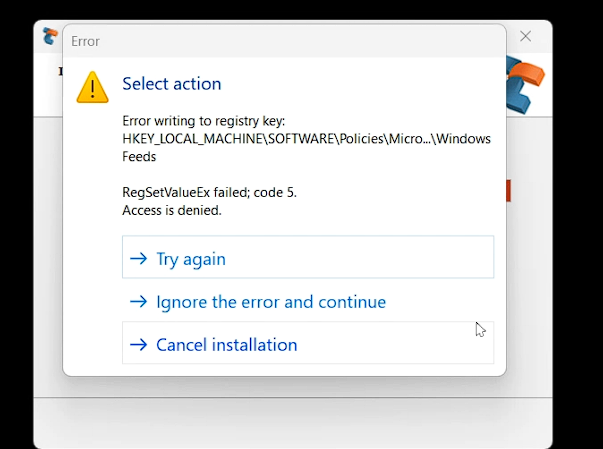
You're installing or updating TriCaster Mini S software on your Windows PC and suddenly a dialog freezes you in your tracks:
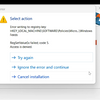
Error writing to registry key:
HKEY_LOCAL_MACHINE\SOFTWARE\Policies\Micro…\Windows FeedsRegSetValueEx failed; code 5. Access is denied.
→ Try again | → Ignore the error and continue | → Cancel installation
If you've hit this dialog during a TriCaster Mini S software installation or update, you're not alone — and most importantly, your installation is not broken. This is a well-documented, benign Windows registry permission quirk that affects certain Windows 10/11 enterprise and managed environments. It does not indicate corrupt software, a failed update, or hardware damage.
This guide explains exactly what the error means, why it happens during the TriCaster Mini S installer, what the safe fix is, and how to clean up afterward — so you can get back to producing broadcast-quality content with confidence.
What Is the "RegSetValueEx Failed; Code 5" Error?
RegSetValueEx is a Windows API function that writes values to the Windows Registry. When an installer calls this function and receives error code 5, it means the current process does not have sufficient permissions to write to the specific registry key it's targeting.
In this case, the key in question is:
HKEY_LOCAL_MACHINE\SOFTWARE\Policies\Microsoft\Windows Feeds
This key lives under the Windows Policies hive — an area of the registry that is intentionally locked down on managed Windows machines (domain-joined PCs, corporate/educational environments, or systems with Group Policy Objects applied). Even administrators running an installer "as Administrator" may be blocked from writing to this specific policy path.
Is this a serious error?
No. The Windows Feeds policy key has nothing to do with TriCaster Mini S's core functionality. It's a leftover artifact from an older TriCaster driver installation routine. The file responsible, AdjustRegPermissions.exe, is a legacy utility from a previous development team and is no longer an active part of the TriCaster Mini S software. The installer still calls it, but the outcome of that call has zero impact on TriCaster Mini S operation.
Why It Happens During TriCaster Mini S Software Installation
The TriCaster Mini S installer package includes a utility at the following path:
C:\Program Files\NewTek\TriCaster\Drivers\hdbins\AdjustRegPermissions.exe
This tool was originally written to adjust certain Windows registry permissions required for older TriCaster hardware driver integrations. In modern Windows environments — particularly those running Windows 10 21H2 or later, or any Windows 11 build — Microsoft has tightened access controls on the HKEY_LOCAL_MACHINE\SOFTWARE\Policies hive as part of hardening against malware and unauthorized policy changes.
When the TriCaster Mini S installer invokes AdjustRegPermissions.exe and it attempts to write to …\Policies\Microsoft\Windows Feeds, Windows flags the write attempt and returns Access Denied (code 5). The installer surfaces this as an interactive dialog because it can't silently fail — but the engineering decision has been made that this failure is entirely safe to bypass.
Affected environments include:
- Windows PCs running TriCaster Mini S software (perpetual or subscription)
- Domain-joined Windows workstations with Group Policy applied
- Windows 10 (21H2+) with standard security hardening
- Windows 11 (all versions) — particularly Home and Pro with default UAC
- Machines previously updated from older Windows builds
- Any system performing a TriCaster Mini S version update
The Official Fix: Click "Ignore the Error and Continue"
This is the correct, Vizrt-acknowledged resolution. When you see the error dialog:

- Do not click "Try again" — it will fail again with the same error, since the underlying permission restriction is enforced at the Windows policy level and won't change between attempts.
- Do not click "Cancel installation" — this will abort the entire installation or update, leaving your TriCaster Mini S software in a partially updated state.
- Click "Ignore the error and continue" — this is the correct action. The installer will skip the registry write that failed and continue with all remaining TriCaster Mini S installation steps normally.
- Allow the installer to complete. All core TriCaster Mini S components, drivers, and configuration files will be installed correctly.
- Reboot the system when prompted. TriCaster Mini S will launch and operate normally.
Optional Cleanup: Removing AdjustRegPermissions.exe After Installation
Because AdjustRegPermissions.exe is confirmed as a legacy file no longer needed by the current TriCaster Mini S software, Vizrt's technical guidance allows you to manually delete it after installation completes. This is entirely optional but eliminates any future confusion if the file triggers antivirus alerts.
To remove it, navigate to the following directory in Windows Explorer:
C:\Program Files\NewTek\TriCaster\Drivers\hdbins\
Locate AdjustRegPermissions.exe in the file listing and delete it. No other files in this directory should be removed — they are active TriCaster Mini S driver components.

What about antivirus software flagging the file?
Some antivirus engines flag tools that attempt to modify registry permissions as potentially unwanted programs (PUPs), even when they're from legitimate vendors. If your AV solution blocks AdjustRegPermissions.exe during the TriCaster Mini S install, add a temporary exclusion for the installer directory, allow the install to complete, then remove the exclusion and delete the file as described above.
How to Prevent This Error on Future TriCaster Mini S Updates
If you'd like to eliminate the dialog entirely for future TriCaster Mini S software updates, you have a few options depending on your environment:
Option A: Run the installer from an elevated Administrator account
Right-click the TriCaster Mini S installer and choose "Run as administrator" — but note that on policy-locked machines, even true administrators may still hit this error because the Windows Feeds policy key has additional protections beyond standard admin rights. In this scenario, the "Ignore" approach remains the practical fix.
Option B: Delete AdjustRegPermissions.exe pre-emptively
Since the file is confirmed legacy, some IT administrators choose to remove AdjustRegPermissions.exe from their TriCaster Mini S installation proactively, before running future updates. When the installer calls the utility and doesn't find it, the step is skipped silently on most installer configurations.
Option C: IT-managed environments — GPO-level exclusion
For facilities running TriCaster Mini S on domain-joined machines under Group Policy management, coordinate with your IT team to ensure the TriCaster Mini S installer has the appropriate policy exceptions, or simply document the "Ignore" procedure so operators know what to do when it appears.
Get TriCaster Mini S Software at coremicro
coremicro is an authorized Vizrt reseller. Pick up TriCaster Mini S as a perpetual license or annual subscription — with expert pre-sales support based in Union City, CA.
Frequently Asked Questions
HKEY_LOCAL_MACHINE\SOFTWARE\Policies\Microsoft\Windows Feeds) is completely unrelated to TriCaster Mini S's operational functionality. All critical installation steps proceed normally after you click Ignore.
AdjustRegPermissions.exe utility being bundled in the installer package, not a specific software version number.
The Bottom Line
The RegSetValueEx failed; code 5 — Access is denied error during TriCaster Mini S installation looks alarming but is completely harmless. It stems from a legacy utility (AdjustRegPermissions.exe) attempting to write to a Windows policy registry key that modern Windows configurations protect by design. The fix takes one click: Ignore the error and continue. Your TriCaster Mini S software will install and run perfectly.
If you're setting up TriCaster Mini S for the first time, upgrading from an older version, or need help deciding between the perpetual license and annual subscription, the team at coremicro is here to help. We're an authorized Vizrt reseller with deep expertise in live production workflows.
📞 Contact coremicro for TriCaster Mini S support, pricing, and expert consultation:
→ Reach Our Team |
→ Buy TriCaster Mini S (Perpetual) |
→ Buy TriCaster Mini S (Annual Sub) |
→ Browse All Vizrt Products