








Best GPUs for DaVinci Resolve Studio (2025-2026 Guide)
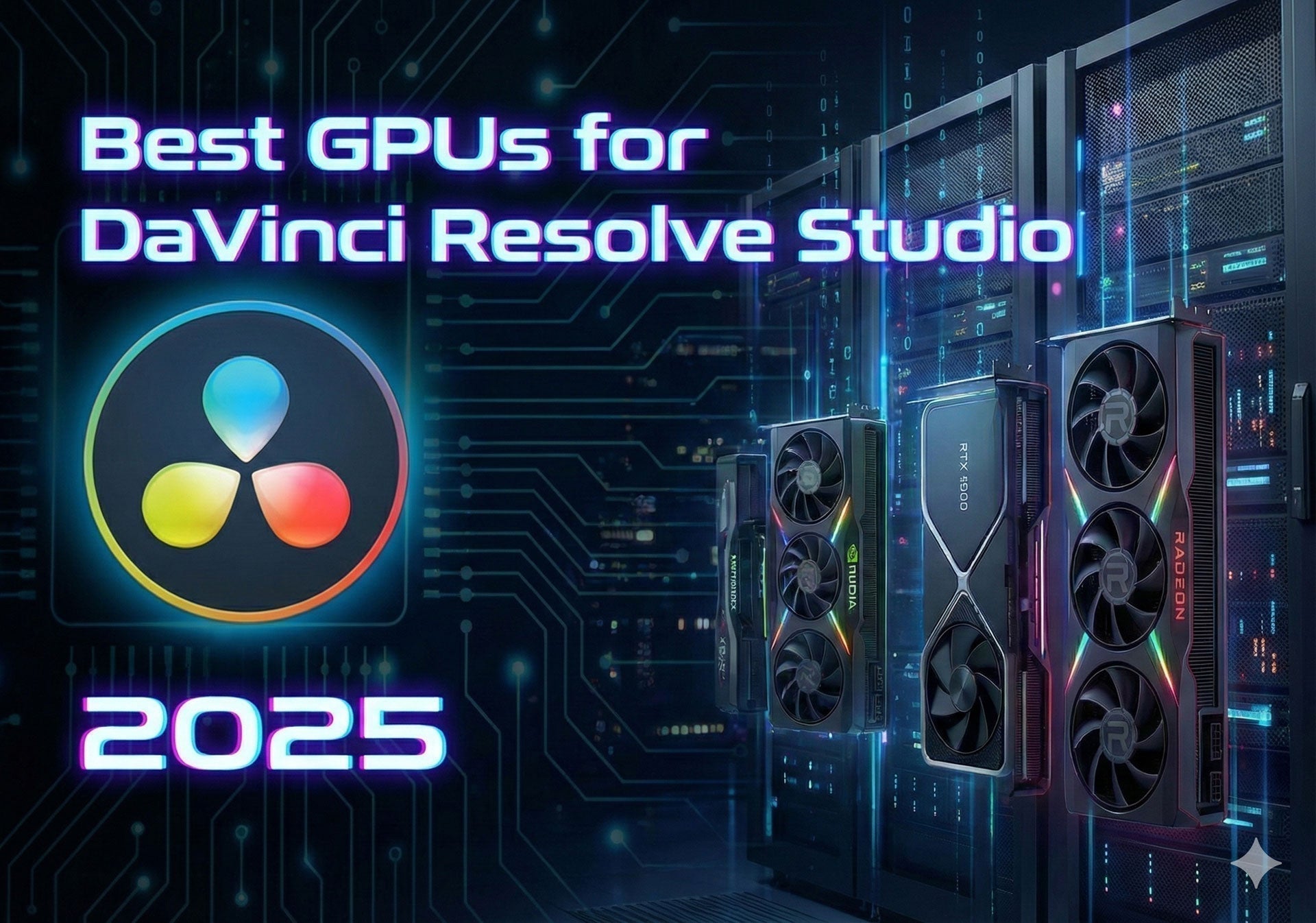
Best GPUs for DaVinci Resolve Studio in 2025–2026
If you work in DaVinci Resolve Studio—editing, color grading, or running a full post-production pipeline—your GPU is the single most impactful piece of hardware in your system. Resolve offloads color processing, AI-powered effects, noise reduction, and Fusion compositing directly to the graphics card. Choose the wrong one and you'll fight choppy playback and slow renders. Choose the right one and your timeline stays fluid even at 8K. This guide covers every tier, from budget to workstation-class, matched to real-world workflows.
DaVinci Resolve Studio Activation Key
Magic Mask, temporal noise reduction, multi-GPU support, Super Scale upscaling, and every advanced AI effect are exclusive to the Studio version. An activation key is a one-time purchase—no subscription, no recurring fees.
Buy DaVinci Resolve Studio Key — Electronic Delivery After VerificationCoremicro is an authorized Blackmagic Design reseller. Licenses are delivered electronically after order verification.
⚠ Digital licenses are non-refundable after delivery.
Why the GPU Is the Most Important Component in DaVinci Resolve
Unlike most creative software that leans heavily on the CPU, DaVinci Resolve was architected from the ground up to exploit GPU parallel processing. The Color page, Fusion compositing, temporal effects, and AI tools all run primarily on the graphics card—not the processor.
Here is what the GPU directly accelerates inside Resolve:
- Real-time playback of 4K, 6K, and 8K timelines with color grades applied
- Node-based color operations: LUTs, curves, power windows, secondary qualifications, tracking
- AI Resolve FX: Magic Mask, Face Refinement, Depth Map, Beauty
- Temporal and spatial noise reduction (some of the most GPU-intensive tasks in Resolve)
- Super Scale upscaling and detail enhancement
- OpenFX: Lens Blur, Film Grain, Glow, Sharpen, Relight FX, and third-party plugins
- Motion estimation and optical flow retiming
- Fusion 2D/3D compositing and particle systems
- RAW decoding for BRAW, R3D, ARRIRAW, and other high-bit-depth formats
- Hardware-accelerated H.264, H.265, and AV1 encode/decode (NVIDIA RTX 50-series)
A mid-range GPU from four years ago will make you wait. A properly chosen modern card keeps you in the creative zone.
NVIDIA vs. AMD in Resolve: NVIDIA's CUDA architecture is more deeply integrated into Resolve's acceleration pipeline. In independent benchmarks, NVIDIA RTX cards consistently outperform equivalent AMD Radeon GPUs in Resolve—particularly for AI-driven effects like Magic Mask, noise reduction, and Super Scale. AMD remains a viable option for color-focused workflows but currently lags in Resolve's neural processing stack.
How Much VRAM Do You Need for DaVinci Resolve?
VRAM is the GPU's own memory pool. Resolve loads your media, effects, LUTs, and node data into VRAM to process frames in real time. When VRAM runs out, performance collapses—you see stuttering playback, failed effects, and memory errors. Here is a practical guide by resolution and workflow complexity:
| Workflow / Timeline | Minimum VRAM | Recommended VRAM |
|---|---|---|
| 1080p basic editing | 6–8 GB | 8–12 GB |
| 4K SDR with basic grade | 8 GB | 12–16 GB |
| 4K HDR with OpenFX and AI tools | 12 GB | 16–24 GB |
| 6K RAW (BRAW, R3D, ARRIRAW) | 12 GB | 16–24 GB |
| 8K RAW timelines | 16 GB | 24–32 GB |
| EXR / VFX compositing in Fusion | 24 GB | 32–48 GB |
| Multi-GPU rendering environments | 16 GB per card | 24–32 GB per card |
Best GPUs for DaVinci Resolve Studio in 2025–2026
The recommendations below are organized by workflow tier. Each card is chosen for what it actually delivers inside Resolve—not just raw benchmark numbers.
NVIDIA GeForce RTX 5090
Best OverallThe RTX 5090 is the fastest single GPU available for DaVinci Resolve today. Independent testing by Puget Systems found it performs on par with three previous-generation RTX 4090 cards—a generational leap that matters enormously for demanding timelines. Its 32 GB of ultra-fast GDDR7 VRAM eliminates memory bottlenecks even on the most complex projects.
- Highest single-GPU performance available in Resolve
- 32 GB GDDR7 handles 8K RAW, heavy noise reduction, and dense Fusion composites without cache thrashing
- Best-in-class AI acceleration for Magic Mask, Super Scale, and Relight FX
- Hardware AV1 decode/encode significantly speeds H.265 and AV1 workflows
- Real-time playback maintained even in demanding HDR timelines with multiple OpenFX stacked
NVIDIA GeForce RTX 5080
Best High-End ValueFor most working professionals, the RTX 5080 delivers the ideal balance of performance and price. It brings near-flagship compute power and GDDR7 bandwidth at a meaningfully lower cost than the 5090. The 16 GB VRAM limit is the only reason it sits below the 5090—for 4K through 6K workflows, it is an excellent match.
- Near-flagship performance at a lower cost
- GDDR7 memory delivers fast bandwidth for AI effects and node-heavy grades
- Handles 4K–6K timelines with multiple AI tools without playback stutter
- Ideal for commercial, documentary, and episodic finishing workflows
NVIDIA GeForce RTX 5070 Ti
Mid-Range Sweet SpotThe RTX 5070 Ti is the strongest mid-range choice for 4K-primary workflows. It pairs 16 GB of GDDR7 memory with strong compute performance, making it capable of handling complex color grades, multi-node effects, and AI features without feeling underpowered. Studios running multiple workstations will find this tier exceptionally cost-effective.
- Strong price-to-performance ratio for 4K work
- 16 GB GDDR7 provides adequate headroom for LUT-heavy and OFX-dense timelines
- Smooth real-time playback in 4K with full grades applied
- Handles Magic Mask and noise reduction without major performance hits
NVIDIA GeForce RTX 5070
Strong Mid-RangeThe RTX 5070 enters the Blackwell generation at an accessible price point and brings a meaningful performance step up over the prior generation's mid-tier cards. The 12 GB VRAM may limit headroom on very heavy 4K workflows with stacked AI effects, but for clean 4K editing and grading it performs admirably.
- Blackwell architecture brings improved AI and CUDA performance over last-gen
- GDDR7 bandwidth keeps node-heavy grades responsive
- Good option for editors primarily cutting and doing basic grades
- 12 GB VRAM is sufficient for 4K SDR without heavy AI tooling
NVIDIA GeForce RTX 4090
Previous-Gen PowerhouseWith the RTX 5090 now available, the RTX 4090 may be found at reduced pricing—and it remains an outstanding card for Resolve. Its 24 GB of VRAM is a significant advantage over the RTX 5070 Ti and 5080, making it competitive for 6K and some 8K workflows. If you can find it at a strong price, it is still a professional-grade option.
- 24 GB VRAM gives more headroom than most current mid-range 50-series cards
- Excellent AI acceleration, only slightly behind the new Blackwell generation
- Strong candidate if found at clearance or open-box pricing
NVIDIA GeForce RTX 4060 Ti 16GB
Best Budget OptionAt the budget tier, the RTX 4060 Ti 16GB stands out for one key reason: it packs 16 GB of VRAM at a price well below any 50-series card. That VRAM headroom makes it significantly more capable in Resolve than its compute ranking suggests—it handles 4K SDR work, light AI effects, and moderate color grades without memory-related failures.
- Generous 16 GB VRAM for a budget-tier card
- Low power draw and easy thermal management
- Suitable for 1080p–4K projects without stacked AI tooling
- Good entry point for editors learning Resolve or building a secondary bay
AMD Radeon RX 9070 XT
Best AMD Value 2025AMD's RDNA 4 generation brings meaningful improvements in compute performance and VRAM bandwidth. The RX 9070 XT competes well in the 4K color grading space and is particularly attractive for users who prefer AMD or are building Linux-based grading systems. Note that AMD cards still trail NVIDIA for AI-driven Resolve effects like Magic Mask and noise reduction specifically.
- Strong performance on the Color page for 4K grading
- 16 GB GDDR6 covers most professional 4K workflows
- Competitive price-to-performance ratio
- Good choice for Linux-based grading environments
NVIDIA RTX 6000 Ada (48GB ECC)
Workstation ClassWhen VRAM capacity is the primary concern—massive EXR compositing pipelines, multi-application finishing environments, or 12K+ media—the RTX 6000 Ada stands alone. Its 48 GB of ECC VRAM provides extraordinary headroom and stability over extended production runs. This is a true workstation card designed for facilities where hardware failure carries real cost.
- Unmatched 48 GB ECC VRAM for the most demanding pipelines
- ECC memory reduces data corruption risk in critical production environments
- Designed for multi-GPU and multi-application workflows
- Supported in professional workstation configurations
GPU Comparison at a Glance
| GPU Model | VRAM | Best For | Key Strength | Limitation |
|---|---|---|---|---|
| RTX 5090 | 32 GB GDDR7 | 8K RAW, HDR finishing, Fusion | Fastest single GPU; exceptional AI | Expensive; strong PSU required |
| RTX 5080 | 16 GB GDDR7 | 4K–8K professional work | Near-flagship at lower cost | 16 GB limits extreme 8K+ workloads |
| RTX 5070 Ti | 16 GB GDDR7 | 4K–6K editing and grading | Excellent value; smooth 4K playback | Less ideal for very heavy 6K/8K RAW |
| RTX 5070 | 12 GB GDDR7 | 4K editing and basic grades | Modern Blackwell at mid price | 12 GB VRAM limits AI-heavy 4K |
| RTX 4090 | 24 GB GDDR6X | 4K–8K heavy workflows | 24 GB VRAM; proven platform | Older architecture vs. 50-series |
| RTX 4060 Ti 16GB | 16 GB GDDR6 | 1080p–4K basic work | Budget-friendly; generous VRAM | Limited compute for stacked effects |
| AMD RX 9070 XT | 16 GB GDDR6 | 4K grading, Linux builds | Competitive AMD pricing | AI tools slower than NVIDIA |
| RTX 6000 Ada | 48 GB ECC | EXR VFX, film finishing | Enormous VRAM; ECC reliability | Very expensive; overkill for 4K |
Which GPU Should You Buy? Quick-Pick by Workflow
| Your Workflow | Recommended GPU | Why It Fits |
|---|---|---|
| Beginner / 1080p–4K basic editing | RTX 4060 Ti 16GB | Affordable, quiet, 16 GB VRAM for basic color and light effects |
| 4K editor stepping up | RTX 5070 | Blackwell architecture; GDDR7 bandwidth for responsive timelines |
| Professional 4K color grading | RTX 5070 Ti or RTX 5080 | 16 GB GDDR7, strong AI, real-time 4K playback with full node stacks |
| High-end 4K–6K RAW workflows | RTX 5080 or RTX 4090 | High VRAM, excellent BRAW/R3D decoding, handles noise reduction well |
| Feature film / 8K RAW finishing | RTX 5090 | 32 GB GDDR7 and top compute for the most demanding projects |
| VFX / EXR compositing studio | RTX 6000 Ada | 48 GB ECC VRAM, workstation reliability, multi-GPU support |
| AMD-preferred / Linux-based setup | AMD RX 9070 XT | Strong RDNA 4 performance for color-focused work |
Matching Your CPU to Your Resolve GPU
While the GPU carries the majority of Resolve's processing load, the CPU still matters for media decoding, Fusion compositing, background exports, and timeline responsiveness.
For RTX 5090 / RTX 5080 Builds
- AMD Ryzen Threadripper 9000 series — absolute peak for 6K/8K RAW, multi-GPU builds, and demanding multi-app workflows. Offers far more PCIe lanes and memory bandwidth.
- Intel Core Ultra 9 (Arrow Lake) — excellent for mixed workloads combining editing, grading, Fusion, and encoding. Intel Quick Sync remains a bonus for H.264/H.265 decode.
For RTX 5070 Ti / RTX 5070 Builds
- AMD Ryzen 9 9950X or 9900X — strong core counts and per-core performance; excellent all-rounder for 4K work.
- Intel Core i9 (Core Ultra 200 series) — particularly well-suited for timelines with H.264 and H.265 footage thanks to Quick Sync.
For Budget Builds (RTX 4060 Ti)
- AMD Ryzen 7 9700X — ideal for 4K content creators and editors; excellent single-core performance for Fusion work.
- Intel Core i7 (latest generation) — solid all-around option at a reasonable price point.
Single GPU vs. Multi-GPU in DaVinci Resolve Studio
DaVinci Resolve Studio supports up to eight GPUs in theory, with real-world performance peaking at around three to four cards in testing. But multi-GPU setups come with important caveats:
- For the vast majority of editors and colorists, a single high-end GPU provides better value, stability, and simplicity than multiple mid-range cards
- Multi-GPU benefits are most tangible for 8K+ finishing with heavy temporal noise reduction or large EXR-based VFX pipelines
- NVLink does not work in DaVinci Resolve—enabling it actually degrades performance by reducing effective GPU visibility to a single card
- Fusion benefits more from a strong single GPU plus a fast CPU than from adding a second graphics card
- Mixed GPU configurations create driver conflicts and instability across other applications
Recommendation: Unless you run a dedicated grading or VFX facility with specific throughput requirements, invest your budget in one excellent GPU with ample VRAM rather than splitting it across multiple cards.
Essential System Specs to Pair with Your GPU
RAM (System Memory)
- 32 GB DDR5: Minimum for 4K work; adequate for most professional 4K timelines
- 64 GB DDR5: Recommended for 4K–6K and heavy Fusion compositing
- 128 GB+: Required for 6K–8K RAW pipelines and multi-application environments
Storage
- OS and applications: 2 TB NVMe SSD (PCIe 4.0 or 5.0)
- Project media and cache: Separate high-speed NVMe SSD — Resolve's cache should never share a drive with the OS
- Archive: HDD, NAS, or RAID array for long-term storage
Display
For accurate color work, pair your GPU with a 10-bit, HDR-capable, color-accurate display. For critical grading, consider a Blackmagic DeckLink Mini Monitor 4K for unaltered video output to a reference monitor—the GPU's display output is not a substitute for a dedicated monitoring card in color-critical environments.
Configuring DaVinci Resolve to Use Your GPU Correctly
A common oversight: after installing a new GPU, Resolve may not automatically use it at full capacity. Here is how to confirm your configuration:
- Open DaVinci Resolve and go to Preferences → Memory and GPU
- Under GPU Configuration, set GPU Processing Mode to CUDA (for NVIDIA) or OpenCL (for AMD)—do not leave it on Auto
- Uncheck "Auto" and manually select your GPU from the list
- For multi-GPU systems, select all GPUs you want Resolve to use
- Click Save and restart Resolve
This single step ensures all your hardware investment is actually being used during playback and rendering.
Build Your Complete DaVinci Resolve Workstation
A GPU is only one piece of a high-performance Resolve workstation. Explore these related resources on Coremicro:
- DaVinci Resolve Studio Activation Key — unlock AI tools, multi-GPU support, and Studio-exclusive effects
- Blackmagic Design Products — cameras, capture cards, monitoring solutions, and accessories
- Professional Video Workstations — pre-configured systems built for post-production
- Graphics Cards — browse available GPU inventory including NVIDIA RTX series
- Contact Our Team — get personalized workstation recommendations from our specialists
Authoritative Resources for Further Research
- Puget Systems DaVinci Resolve Hardware Recommendations — benchmark-backed guidance from a leading workstation builder
- Blackmagic Design — DaVinci Resolve Studio Official Page
- Blackmagic Design Support Documentation — official system requirements and supported hardware lists
- Blackmagic Design User Forum — community discussion on hardware performance and configurations
Conclusion: The Right GPU for Your Resolve Workflow
DaVinci Resolve Studio rewards the right GPU generously. A well-matched card means real-time playback at full resolution, instant feedback when adjusting grades, AI tools that respond without lag, and exports that finish when you expect them to.
The summary for 2025–2026:
Pair any of these with a capable modern CPU, at least 64 GB of DDR5 RAM, fast NVMe storage, and the DaVinci Resolve Studio license that unlocks everything this software can do—and you will have a workstation that handles everything from fast-turnaround social content to high-end cinematic delivery.
Ready to Unlock DaVinci Resolve Studio?
Get the Studio activation key that unlocks AI tools, multi-GPU support, Magic Mask, noise reduction, and every professional feature. One-time purchase, no subscription.
Buy DaVinci Resolve Studio Activation Key →-
Posted in
Blackmagic Design, DaVinci Resolve



)