




Panasonic AW-RP150 Remote Camera Controller: Complete Guide & FAQ
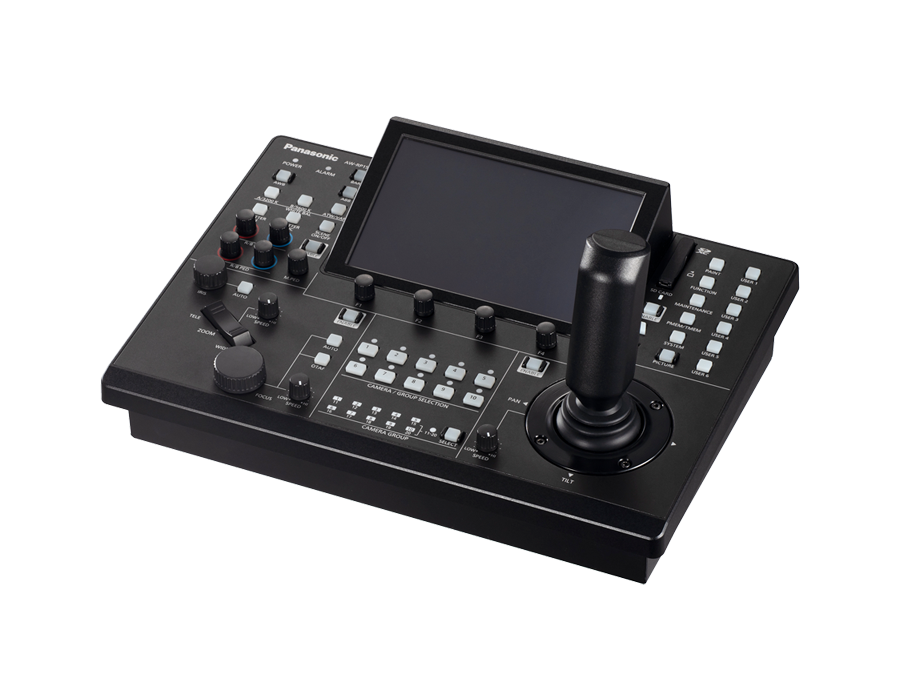

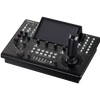
Whether you're running a broadcast studio, a house of worship, or a live event production, having a reliable and capable remote camera controller is non-negotiable. The Panasonic AW-RP150GJ is a professional-grade remote controller designed to handle multi-camera IP and serial workflows with precision — and it's packed with capabilities that serious AV operators need. This guide breaks it all down.
What Makes the AW-RP150GJ Stand Out?
The AW-RP150GJ is Panasonic's flagship remote camera controller, engineered for demanding broadcast and live production environments. It supports up to 200 IP-connected cameras simultaneously, plus an additional 5 cameras over RS422 serial — giving operators immense flexibility in how they architect their systems.
One of its most practical strengths is the ability to mix IP and RS422 camera connections within a single unified system. This is critical for facilities transitioning from legacy serial infrastructure to modern IP workflows, allowing a phased migration without disrupting ongoing operations. A ZOOM/FOCUS rocker mounted on the joystick manages pan and tilt operations for intuitive single-handed control, while the built-in touch display allows quick access to all essential camera functions.
Power Options: PoE+ and AC Adapter
The AW-RP150GJ supports the PoE+ (IEEE 802.3at) standard, allowing it to be powered directly over an Ethernet cable — ideal for clean installations where running separate power lines is impractical. The AC adapter is not included; Panasonic recommends the AW-PS551 as the compatible power supply. A dual system GPIO (general purpose input/output) terminal is also equipped as standard on the rear panel.
Running both PoE+ and AC adapter simultaneously is perfectly safe — the unit draws from the AC adapter when both are connected. One thing to note: disconnecting the AC adapter while both are active will cause a brief reboot to complete the PoE+ powering sequence.
3G SDI Input and the AW-UE150 Pairing
The built-in 3G SDI INPUT serves several functions beyond simply displaying camera menus on the controller's LCD. It enables focus assist tools (Touch-Focus and Peaking-Focus) and powers the Region of Interest (ROI) cropping function — both exclusive to the AW-UE150 PTZ camera pairing.
Accepted SDI formats include 1080/59.94p and 1080/50p (Level-A only), plus 1080/59.94i, 1080/50i, 1080/23.98p, 1080/25p, 1080/23.98PsF, and 1080/25PsF. For ROI cropping, connect the MONITOR OUT of the AW-UE150 to the 3G SDI INPUT, press the PICTURE button on the controller, then press ENABLE near the joystick until it lights green to adjust the crop marker position.
Camera Compatibility Chart
The AW-RP150GJ is compatible with a wide range of Panasonic PTZ and multi-purpose cameras. The tables below reflect the official Compatibility Chart for Operation Devices (as of March 2026). A ✔ indicates full compatibility; TBD means support is planned; — means not supported.
| Camera Model | Notes | AW-RP150GJ |
|---|---|---|
| AW-UE160W/K | ✔ Compatible | |
| AW-UE150AW/AK | ✔ Compatible | |
| AW-UE150W/K Discontinued | ✔ Compatible | |
| AW-UE100W/K | ✔ Compatible | |
| AW-HE145W/K | ✔ Compatible | |
| AW-HN130W/K / AW-HE130W/K Discontinued | ✔ Compatible | |
| AW-UE80W/K | ✔ Compatible | |
| AW-UN70W/K / AW-UE70W/K Discontinued | ✔ Compatible | |
| AW-UE50W/K | ✔ Compatible | |
| AW-UE40W/K | ✔ Compatible | |
| AW-UE30W/K | ✔ Compatible | |
| AW-HE42W/K Discontinued | ✔ Compatible | |
| AW-HN40HW/HK / AW-HE40SW/SK / AW-HE40HW/HK Discontinued | ✔ Compatible | |
| AW-HN38HW/HK / AW-HE38HW/HK Discontinued | ✔ Compatible | |
| AW-UE20W/K | ✔ Compatible | |
| AW-UE4WG/KG | Menu display differs from other cameras | ✔ Compatible |
| AW-HE20W/K Discontinued | ✔ Compatible | |
| AW-UR100 | ✔ Compatible | |
| AW-HR140 Discontinued | ✔ Compatible |
| Camera Model | Notes | AW-RP150GJ |
|---|---|---|
| AK-SHB800GJ/PSJ Discontinued | ✔ Compatible | |
| AK-UBX100 | ✔ Compatible | |
| AK-UBX100 + Movicom Robyhead D1 | Requires software v2.12.0.0 or later | ✔ Compatible |
| AK-UB300GJ + AW-PH400 Discontinued | ✔ Compatible | |
| AW-UB50 | US and Europe only | ✔ Compatible |
| AW-UB50 + Movicom Robyhead D2 | Requires software v2.12.0.0 or later | ✔ Compatible |
| AW-UB10 | US and Europe only | ✔ Compatible |
| AW-UB10 + Movicom Robyhead D2 | Requires software v2.12.0.0 or later | ✔ Compatible |
| Camera Model | Notes | AW-RP150GJ |
|---|---|---|
| AG-CX370 | ✔ Compatible | |
| AG-CX350 | ✔ Compatible | |
| AJ-UPX360ED | ✔ Compatible | |
| AJ-CX4000GJ | — Not Supported | |
| AG-UCK20GJ | — Not Supported |
Frequently Asked Questions
I don't know the ID and password to use IP or update firmware on the AW-UE150.
IP connection and firmware updates on the AW-UE150 require completing a "User registration" first. Connect a computer to the camera over the IP network, access the camera's address via web browser, and complete the initial registration screen to set a username and password. Once registered, both network connection and firmware updates become available.
I ran AUTO IP SET but the controller doesn't recognize the AW-UE150 camera at all.
IP control of the AW-UE150 is not possible without first completing "User registration" on the camera. Connect a computer to the camera over the IP network, open a web browser, navigate to the camera's IP address, and complete the initial user registration to set a username and password. After that, IP connectivity becomes available.
Can I turn on all cameras automatically when the controller powers on?
Yes. Press the SYSTEM button to open the system menu, choose "1. CAMERA," and set the AUTO POWER item to ON. All cameras on the network will power on together with the controller. Note: this only works for power-on — it does not trigger a power-off when the controller turns off.
Can I select and adjust the crop area for the AW-UE150's image cropping function?
Yes, the crop area can be freely selected and adjusted on the AW-RP150GJ. Supply a video signal from the MONITOR OUT of the AW-UE150 to the 3G SDI INPUT of the AW-RP150GJ, then press the PICTURE button to display the crop marker on the built-in LCD. To adjust the marker position, press the ENABLE button near the joystick until it lights green. This cropping function is only available with the AW-UE150 camera.
What TV formats does the 3G SDI INPUT support?
The 3G SDI INPUT accepts the following formats: 1080/59.94p (Level-A only), 1080/50p (Level-A only), 1080/59.94i, 1080/50i, 1080/23.98p, 1080/25p, 1080/23.98PsF, and 1080/25PsF.
What is the purpose of the 3G SDI INPUT?
The 3G SDI INPUT serves three main purposes: displaying camera menu characters on the built-in LCD panel, enabling focus assist controls such as Touch-Focus and Peaking-Focus, and displaying crop markers for the Region of Interest (ROI) cropping function. The focus assist and ROI features are only available when paired with the AW-UE150 camera.
What PTZ cameras are supported by the AW-RP150GJ?
The AW-RP150GJ is compatible with virtually all current and recent Panasonic PTZ cameras including the AW-UE160, AW-UE150, AW-UE100, AW-UE80, AW-UE70, AW-UE50, AW-UE40, AW-UE30, AW-UE20, AW-UE4, AW-HE145, AW-HE42, AW-HE40, AW-HE38, AW-HE20, AW-UR100, and AW-HR140. See the full compatibility chart above for details.
Does the AW-RP150GJ have a switcher link function like the AW-RP50 or AW-HS50?
No. The AW-RP150GJ does not have a switcher link function. If this capability is essential to your workflow, you would need to evaluate other products in Panasonic's lineup.
What kind of cable do I need for a direct IP connection between camera and controller?
When connecting the camera directly to the AW-RP150GJ without a network switch in between, you may need a crossover cable. A standard straight-through cable is used when connecting through a switch.
Can I mix IP and RS422 (serial) cameras in the same system?
Yes. Mixing IP and RS422 connections within a single system is fully supported with no compatibility issues.
The AC adapter doesn't come standard — what power supply is recommended?
Panasonic recommends the AW-PS551 as the compatible AC adapter for the AW-RP150GJ.
Is there any problem supplying power from both PoE+ and an AC adapter simultaneously?
No problem — the unit works fine with both connected, drawing power from the AC adapter when both are present. However, if you disconnect the AC adapter while both are active, the unit will briefly reboot to complete the necessary PoE+ powering-up process.
Does the AW-RP150GJ support PoE powering?
Yes. The AW-RP150GJ supports the PoE+ (IEEE 802.3at) standard.
How many position presets can be stored per camera?
Up to 100 position presets can be stored per camera.
How many AW-RP150GJ units can exist on the same IP network?
A maximum of 5 AW-RP150GJ units can coexist on the same IP network at the same time.
How many cameras can be connected and operated?
Up to 200 cameras over IP connection, plus up to 5 cameras over RS422 serial connection, can be connected and operated simultaneously.
PoE-powered devices on the network are behaving unstably — what should I do?
If two or more PoE-powered devices (such as the AW-RP150GJ and AK-MSU1000) are on the same network, instability can occur. Panasonic recommends using AC adapters for power supply or consulting the official Compatibility Chart for PoE HUB for a tested hub configuration. Also make sure LLDP is enabled on your network switch.
Ready to see the AW-RP150GJ in action?
Explore specs, compatibility charts, and find the right system configuration for your production.